SIMPLE METHOD TO RESET WINDOWS PASSWORD
Requirements
- USB drive
- Any Linux distribution like Ubuntu, Linux mint, Puppy Linux, Fedora etc.,( Puppy Linux is small, around 150 MB )
- Live USB Creator ( Rufus )
Steps to follow
- Creating live USB from the Linux distribution
- Download the Linux image ( Puppy Linux or anything Convenient )
- Open Rufus and select the ISO image


- Insert the USB drive and select your USB drive from Device list in the top.
- Click start and wait to be finished.


- Restart the Computer and boot from USB drive.
- Run Live mode of the distribution.
3.Replacing osk.exe with cmd.exe
- From the file manager available in live mode go to \Windows\System32 folder of the windows installation volume.
- Rename the file 'osk.exe' to to anything else, like 'osk2.exe'.
- Copy cmd.exe to any other location and rename it to 'osk.exe' and put this file in the previous location \Windows\System32\
What happens now is the executable file of Windows Onscreen Keyboard is replaced with Command prompt ( With Administrator privilege ). Your job is almost finished.
4.Resetting the Password
- Remove the USB and restart to windows. Windows logon screen will be opened.
- Now open Onscreen Key board as shown in the below picture
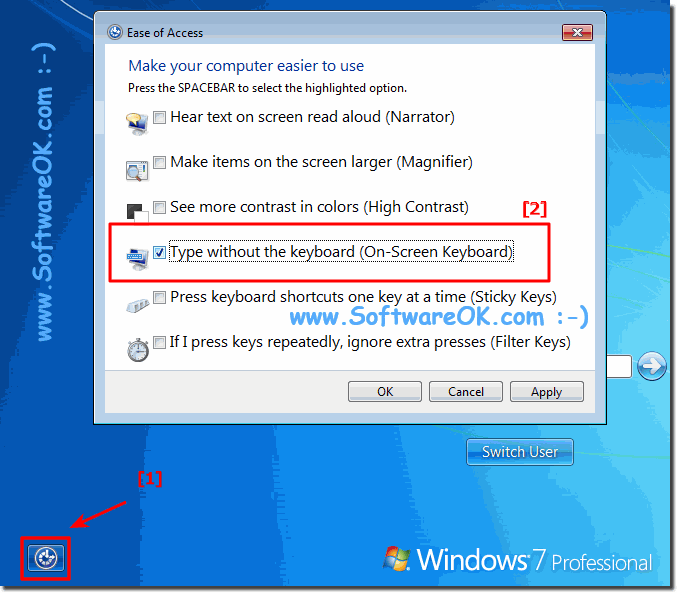
Windows 8/8.1/10
 Now command prompt will be opened. Enter the following command to list the Users of the Computer
net user
Lets assume 'Jay' is the user whose password is to be reset, then enter
net user Jay *

Now cmd will ask for new password. enter any new password to change or leave empty to remove password.
Close the cmd prompt and login using the new Password.
If you don't want to use Linux distributions you can create a Windows recovery disc to do the job.
There are also other alternatives for renaming and replacing the osk.exe and cmd.exe files, do search the Internet for such methods.


